How to Improve Your Home Wifi Signal
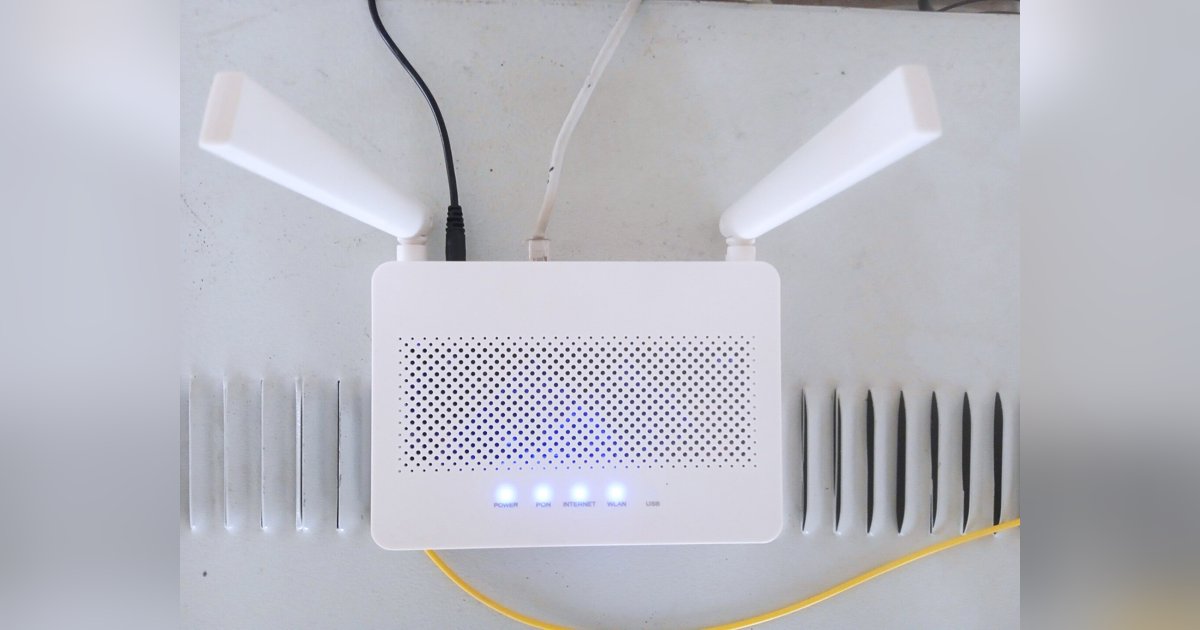
Few things are as irritating as a video that buffers in the living room while the bedroom has a perfect signal. Home wifi problems are common, and they are rarely caused by a single fault. Walls, distance, interference and old equipment can each play a part. The good news is that you can often improve your home wifi with a few simple changes, before spending money on anything new.
Understand how wifi works
Wifi is a radio signal that travels from your router to your devices. Like any radio signal, it gets weaker with distance and when passing through walls, floors, mirrors and appliances. Concrete, brick and metal block it more than wood or plasterboard. Many other devices also use similar frequencies, which can cause interference.
Move the router to a better spot
Where the router sits matters more than most people think. Follow these guidelines.
- Place it in a central location, not in a corner or at the edge of the house.
- Raise it off the floor, on a shelf or table, since signals spread outward and downward.
- Keep it in the open, not inside a cupboard, behind a television or next to a thick wall.
- Keep it away from microwaves, cordless phones, baby monitors and large metal objects.
- Point the antennas, if adjustable, in different directions, such as one vertical and one horizontal.
Often, moving a router just a few metres makes a big difference.
Restart it and check for updates
Restarting your router every now and then clears temporary problems. Unplug it for thirty seconds, then plug it back in. Check whether the router’s firmware is up to date, since updates can fix faults and improve speed. Many routers update automatically, but some need you to log in to the admin page, usually shown on a label on the device.
Choose the right band
Most modern routers broadcast on two bands. The 2.4 GHz band reaches further but is slower and more crowded. The 5 GHz band is faster but covers a shorter range. Use 5 GHz for devices close to the router, such as a laptop or streaming box, and 2.4 GHz for far corners or smart devices. Newer routers also support a third band. If your router combines both bands under one name, you may want to separate them to choose manually.
Change the channel
In crowded areas, such as apartment blocks, neighbouring networks can interfere with yours. Your router may select a channel automatically, but it does not always pick the best one. In the settings, try a different channel, such as 1, 6 or 11 on 2.4 GHz. Free apps can show which channels are busy.
Reduce the load
Many devices on one network share the same capacity. Streaming, gaming, video calls and large downloads all compete. Disconnect devices you are not using. Pause large downloads and updates during important calls. Some routers have a quality of service setting that prioritises certain devices or activities.
Secure your network
A weak or missing password lets others use your connection and slows it. Use a strong password and the latest security option, ideally WPA3 or WPA2. Change the default administrator password on the router. Check the list of connected devices and remove any you do not recognise.
Use a wired connection where you can
For devices that stay in one place, such as a desktop, a games console or a television, an Ethernet cable is faster and more stable than wifi. It also frees up wireless capacity for other devices. A long cable along a skirting board is a low-cost solution.
Use extenders or a mesh system
If a single router cannot cover your home, extend it.
- A wifi extender repeats the signal. It is inexpensive but can reduce speed, so place it halfway between the router and the dead zone, not in it.
- A mesh system uses several units that work together as one network. It provides more even coverage and is ideal for larger or multi-storey homes.
- Powerline adapters send the network through your home’s electrical wiring and can be useful where walls block wifi.
Choose based on your home’s size and layout.
Check your internet plan
Sometimes the problem is not wifi at all, but the speed you pay for. Test your connection with a speed test, both near the router and by cable. If the speed is much lower than your plan, contact your provider. If many people use the connection at once, you may need a faster plan.
Replace old equipment
A router that is five or more years old may not support modern standards. Newer models offer better range, speed and handling of multiple devices. Check whether your provider offers a free upgrade before buying one.
Keep a simple checklist
- Move the router to a central, open spot.
- Restart and update it.
- Use 5 GHz close by and 2.4 GHz further away.
- Change the channel if neighbours interfere.
- Use cables for stationary devices.
- Add mesh or extenders for big homes.
With a little patience, you can usually find the cause of weak wifi and fix it without much expense.